The parent library
The same app, on your own phone, showing every child and every camera in the family — and none of it in your Apple Photos.
The short version
Their photos go somewhere else entirely.
A child with a camera takes two hundred photos of the dog. If those landed in your Apple Photos you would stop handing over the camera, and you would be right to.
So they do not. Mupi keeps its own library — on the camera, and in your family's iCloud — and your Apple Photos never hears about any of it. Nothing appears in your Recents, nothing turns up in your Memories, nothing counts towards the photo count on your own phone.
A photo reaches Apple Photos exactly one way: you open it, and you save it.
How that actually works
Two libraries that never touch.
Mupi asks iOS for one Photos permission, and it is the add-only one: the app is allowed to put a picture in, and is never given the ability to read what is already there. That is not a promise in a privacy policy, it is the permission iOS grants — you can check it in Settings, under Mupi, next to Photos.
Everything else lives in Mupi's own storage: the full-size original, a screen-sized copy, a thumbnail, and whatever the child recorded saying what it is. From there it copies into your family's iCloud, in Mupi's own area of it, separate from iCloud Photos.
Everyone
All your children, from one app.
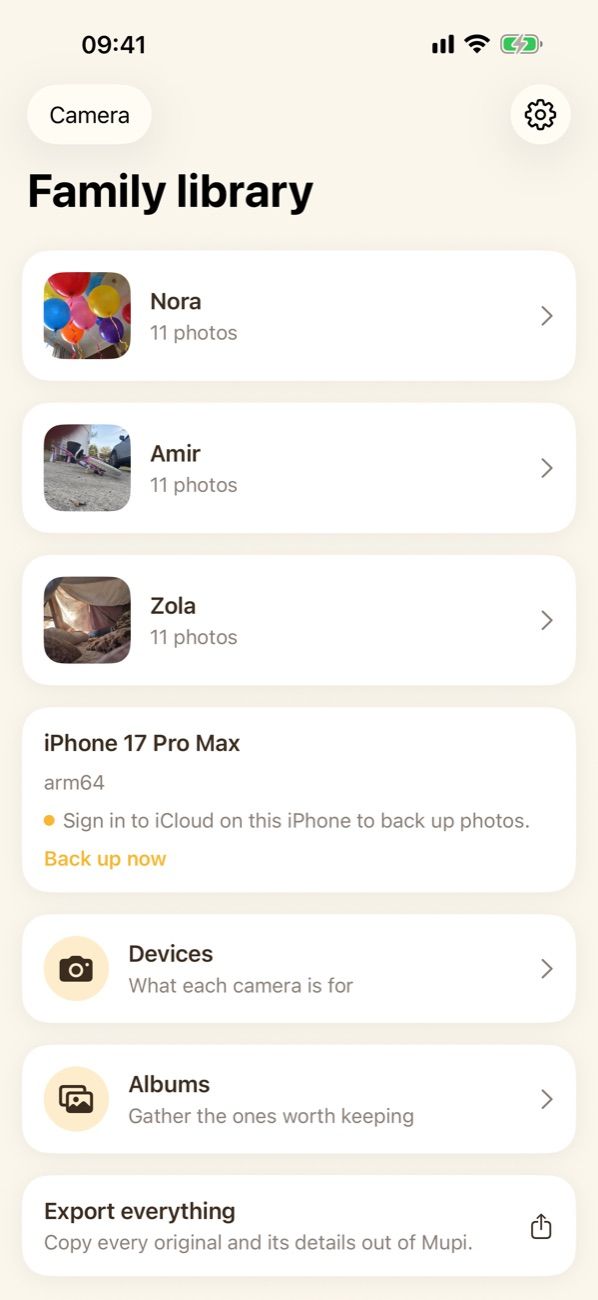
Open Mupi on your own iPhone and you get the family library: every child, how many photos each has taken, what they marked as favourites, and how each camera is holding up.
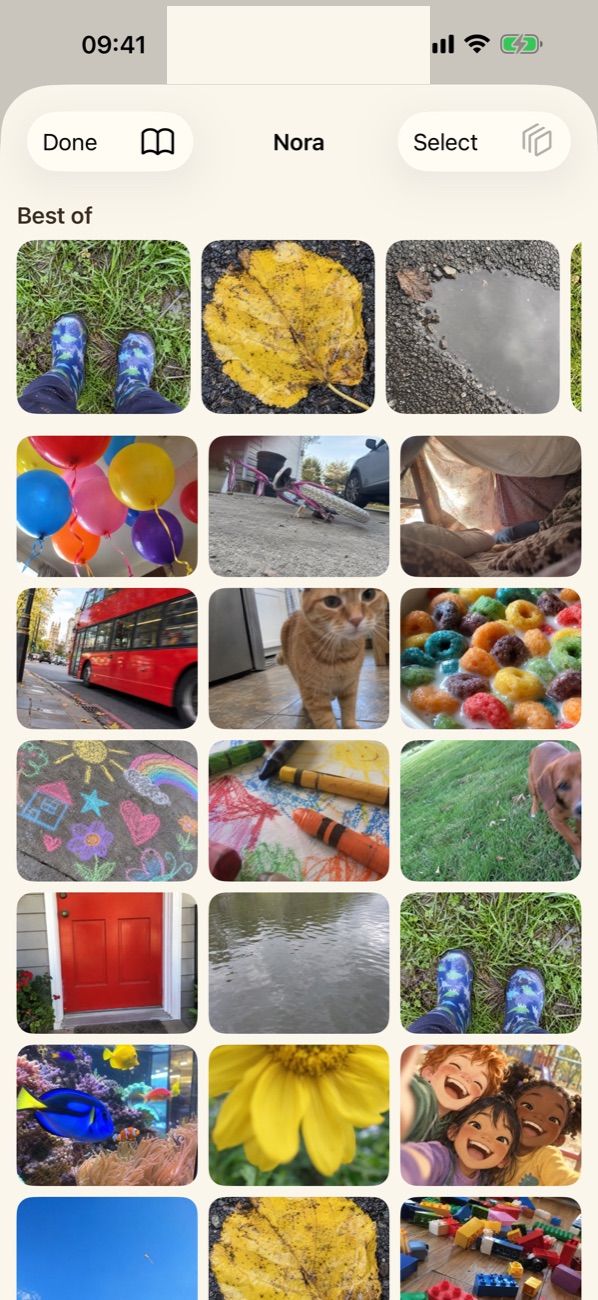
Tap into a child and you get their whole roll — the best of it first, then everything, with the same picture taken eleven times grouped so it is one thing to deal with rather than eleven. Select a handful and you can move them to another child, put them in an album, share them, or delete the lot.
One family, several Apple IDs
It does not have to be your iCloud on every phone.
The simplest setup is one Apple ID: yours, signed in on the camera and on your own phone. Everything appears in both places and there is nothing to configure.
When that is not what you want — a second parent with their own Apple ID, a child old enough to have one — the parent who set Mupi up sends an invitation. Opening it on the other phone joins the same family library. Both of you then see every child and every camera, and can manage all of it.
Only the family library is shared. Joining does not give anyone access to anything else in the iCloud account it came from.
Keeping some
Save the keepers, leave the other two hundred.
When you do want a photo in Apple Photos, save it and it goes in like any other picture — cropped the way you cropped it, ready to share, print, or put in an album that is not Mupi's.
Everything you did not choose stays where it was. That is the whole arrangement: your Photos holds the ones you decided were worth keeping, and Mupi holds the two hundred of the dog.
No lock-in
Take everything with you, whenever.
Export the whole library in one go: the original files plus a plain list of what each photo is, when it was taken and who took it. No account needed to read it and no Mupi required to open it. It is your family's, not Mupi's.
The camera itself
How the old phone is holding up.
Mupi shows what it can see about each camera: how much space is left, what the battery is doing, how many photos are still waiting to back up, and whether it is set up as a child's camera or a grown-up's phone.
What a camera is for is changed on that camera, not from here. A phone with no signal has to keep being a child's camera, so the setting has to be the one the phone itself holds rather than a wish sent from somewhere else.
Everything they took, on your own phone.
Coming soon€14.99 once. No subscription.